How to Create and Read Your Own 3D Printed Punch Cards with OpenCV
Introduction
Punch cards may be the lowest-density storage medium ever invented, but they offer remarkable longevity and simplicity. As demonstrated by the maker known as Bitroller, a modern twist on this ancient technology combines 3D printing and computer vision. His project encodes 16 bytes of data plus 4 bytes of Reed–Solomon error correction—enough for a password or a private key—and reads the cards using OpenCV through a webcam. The result is a durable, fire-resistant storage solution that can outlast most digital media (especially if printed in stainless steel instead of PLA). This guide walks you through the entire process, from generating the card design to decoding it with your webcam.
What You Need
- A 3D printer (FDM or similar, capable of printing at least 50×50 mm)
- Light-colored PLA filament (or stainless steel filament for extreme durability)
- A webcam (any standard USB or built-in will work)
- A computer running Python 3 with the following libraries: OpenCV, NumPy, Pillow
- Bitroller’s Python scripts:
punchcard_generate.pyandpunchcard_read.py(available from his GitHub repository) - A dark, matte table or surface (black preferred) for high contrast
- (Optional) A ruler or alignment guide to position the card consistently
- 16 bytes of data you wish to preserve (e.g., a password, seed phrase, or private key)
Step-by-Step Instructions
Step 1: Prepare Your Data & Generate the 3D Printable File
First, decide what information you want to encode. The card can hold exactly 16 bytes (128 bits). Bitroller’s generator script automatically adds 4 bytes of Reed–Solomon error correction, making the total payload 20 bytes. This error correction can recover up to 2 corrupted bytes during reading.
- Run the generator script:
python punchcard_generate.py - When prompted, enter your 16 bytes as a hexadecimal string (32 hex characters) or a plain ASCII string (16 characters).
- The script outputs an STL file or a g-code file ready for 3D printing. The design consists of raised bumps (representing binary 1s) and flat spots (binary 0s) arranged in a grid.
- Save the file with a descriptive name, e.g.,
mypassword.stl.
Step 2: 3D Print the Punch Card
While the original punch cards were literally punched with holes, your 3D printed version uses raised bumps. The contrast between the bumps (light-colored) and the background (dark) is what the camera sees.
- Load the generated STL file into your slicer software (Cura, PrusaSlicer, etc.).
- Set layer height to 0.2 mm or finer for best detail. Use a infill of at least 20% to ensure rigidity.
- Choose a light-colored filament (white, yellow, or light gray) to maximize contrast with your dark reading surface.
- Print the card. It should be about 50×50 mm and 2–3 mm thick. If using stainless steel, follow the manufacturer’s guidelines (requires a specialized printer).
- Allow the print to cool completely. Clean any stringing or blobs with a knife or sandpaper.
Step 3: Set Up the Reading Station
The key to reliable reading is a controlled, high-contrast environment. The webcam will detect the pattern of light (bumps) against dark (background).
- Place your dark matte table or surface under good, even lighting (avoid direct sunlight or harsh shadows).
- Mount your webcam directly above, pointing straight down at the table. A distance of 15–20 cm works well.
- Ensure the camera’s field of view covers the entire card area. You can test by placing a bright object on the table and confirming it’s visible.
- (Optional) Stick a piece of black paper or adhesive vinyl on the table to create a perfectly uniform dark background.
Step 4: Run the OpenCV Reader Script
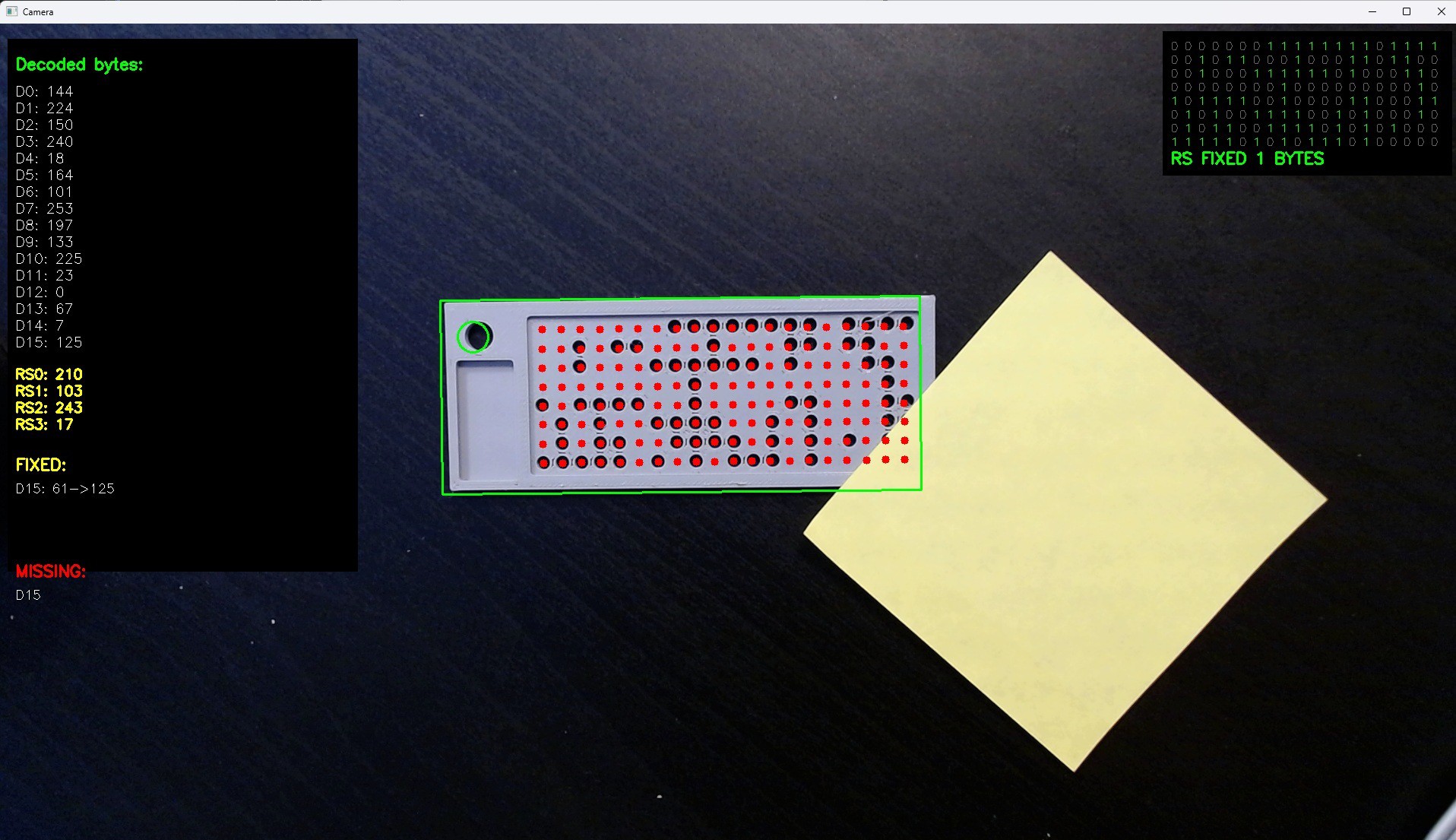
Bitroller’s reader script uses OpenCV to capture a live image from the webcam, find the card’s corners, warp perspective, and decode the bumps.
- Launch the reader script:
python punchcard_read.py - A window will open showing the live webcam feed. Place your 3D printed punch card on the dark surface, within the camera’s view.
- The script automatically detects the rectangular shape of the card. It highlights the card with a border and then processes the interior grid.
- When it finishes reading, the decoded 16 bytes (plus error correction status) will be displayed in the console. If the error correction is successful, you’ll see the original data.
- If the script fails to detect the card, adjust lighting, ensure the card is flat, and the background is as dark as possible. You can also manually adjust the contrast threshold settings in the script (see comments).
Note: The reader is massively overkill compared to historical punch card readers—it’s using a modern computer to do what would have required a supercomputer in the 1960s. But that’s what makes this project both fun and practical.
Tips & Best Practices
- Error correction is your friend: The Reed–Solomon code can fix up to 2 bytes. If the webcam image is slightly blurry or a bump is missing, you’ll still recover your data. Always generate a card with the error correction included.
- Material matters: PLA is cheap and easy to print, but it degrades under UV and heat. For archival purposes, consider using PETG or stainless steel (if available). Stainless steel cards can survive fires and decades of abuse.
- Store multiple copies: Unlike digital files, a physical card can be corrupted by physical damage. Print at least two copies and store them in different locations.
- Alignment is key: The reader script expects the card to be aligned roughly parallel to the camera’s image plane. Use a foam-core board with a cutout to guide placement.
- Lighting: Overhead diffuse lighting works best. Spotlights can create glare on the bumps. A desk lamp with a white diffuser is ideal.
- Alternative uses: Beyond passwords, you can encode small amounts of text, Bitcoin private keys, or even a short message. Remember the 16-byte limit.
- Don’t call it a punch card? Technically, you’re not punching anything—you’re adding material. But the pattern is equivalent, and the aesthetic is classic. Embrace the anachronism!
With these steps, you can build a tangible, durable backup for your most critical digital secrets. The combination of modern 3D printing and computer vision revives a legacy storage method in a way that’s both fun and surprisingly reliable.