Mastering Python Environment Management in VS Code with the Environments Extension
Managing Python environments in VS Code just got a lot easier with the new Python Environments Extension, now generally available. This guide answers common questions about how it works, how to create environments, and how it handles complex project structures. For a quick overview of the extension itself, see What exactly is the Python Environments Extension?.
What exactly is the Python Environments Extension for VS Code?
The Python Environments Extension brings a unified, streamlined workflow to managing Python environments, interpreters, and packages directly within VS Code. After a year in preview—refined through community feedback and real-world usage—it has been released for general availability. The extension works alongside the existing Python extension and requires no setup: simply open a Python file, and your environments are discovered automatically. It consolidates tools like venv, conda, pyenv, poetry, and pipenv into a single interface. Users can expect all environment workflows to switch over automatically in the coming weeks, or they can opt in immediately by setting python.useEnvsExtension to true.
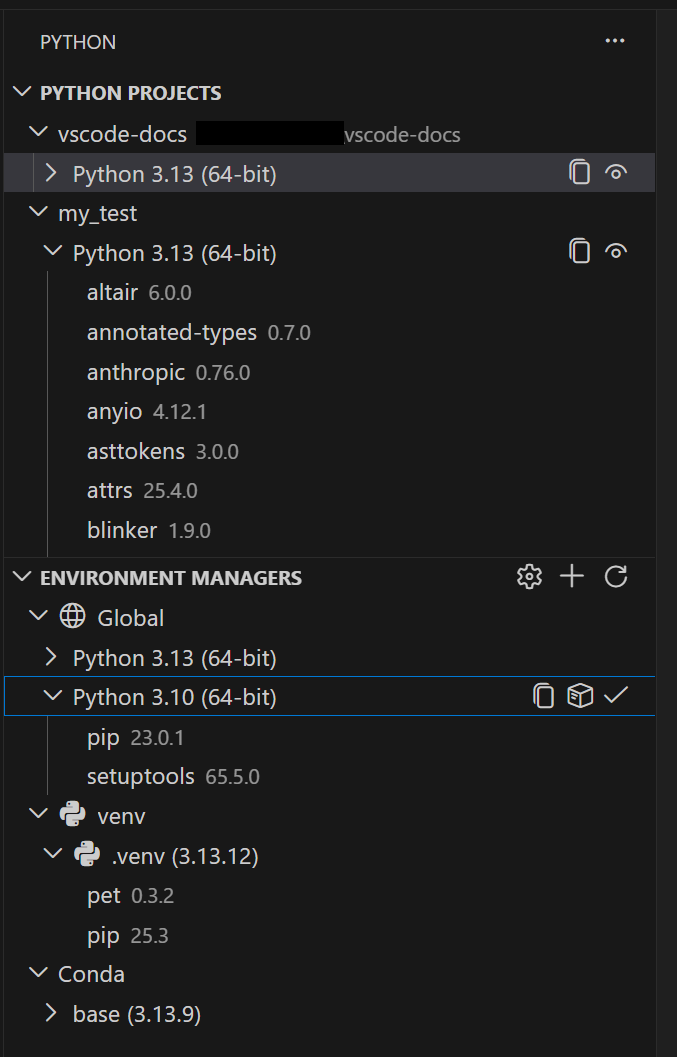
How does the extension automatically discover Python environments?
The extension automatically detects environments from all major managers: venv, conda, pyenv, poetry, pipenv, and system Python installs. This discovery is powered by PET (Python Environment Tool), a fast Rust-based scanner that reliably finds environments across platforms. PET checks your PATH, known installation locations, and any configurable search paths. It's the same proven engine already used by the Python extension—now with a dedicated UI built around it. If your environments are in non-standard locations, you can configure workspace-level search paths using glob patterns or set global search paths for shared directories outside your workspace. For most users, everything works out of the box.
What is Quick Create and how does it work?
Quick Create is the simplest way to spin up a new environment. Click the + button in the Environment Managers view, and the extension builds an environment using your default manager, the latest Python version, and any workspace dependencies it finds in requirements.txt or pyproject.toml. You get a working environment in seconds—no manual steps required. This feature leverages uv if installed (see How does uv make environment creation faster?) for even faster performance. Quick Create is ideal when you need a standard environment quickly and don't need to customize the Python version, manager, or dependency files.
What is Custom Create and when should I use it?
When you need more control, Custom Create (accessed via Python: Create Environment in the Command Palette) lets you choose your environment manager, Python version, environment name, and which dependency files to install from. Both venv and conda support creating environments directly from VS Code; for other managers like pyenv, poetry, and pipenv, the extension discovers environments you create with their respective CLI tools. Use Custom Create when you need to specify a particular Python interpreter, use a non-default manager, or install dependencies from a custom set of files. It gives you full flexibility while keeping the process integrated into VS Code.

How does the extension handle monorepos with Python Projects?
Python Projects let you map specific environments to specific folders or files within your workspace. This solves common problems in monorepos, where different subprojects may require different Python versions or dependency sets. With Python Projects, you can define which environment corresponds to which directory—ensuring that each project component uses its correct interpreter and packages. The feature works seamlessly with the automatic environment discovery, so when you switch between files in different subfolders, VS Code automatically activates the right environment. This eliminates confusion and errors when working on large, multi-module codebases.
How does uv make environment creation faster?
If uv is installed on your system, the extension uses it automatically for creating venv environments and installing packages. uv is significantly faster than standard tools like pip or conda, especially in large projects with many dependencies. This speed boost is enabled by default via the python-envs.alwaysUseUv setting, which you can disable if needed. When you use Quick Create or Custom Create, the extension automatically invokes uv for environment creation and package installation—delivering results in seconds rather than minutes. This optimization makes iterative development workflows much more efficient.
Can I configure search paths for environments in non-standard locations?
Yes, you can. If you have Python environments stored in non-standard directories—such as a shared team folder or a custom project path—the extension allows you to configure both workspace-level and global search paths. At the workspace level, you can specify glob patterns to include additional directories for environment discovery. At the global level, you can set search paths for shared directories outside your workspace. This flexibility ensures that even if your environments aren't in the typical locations (like ./venv or ~/anaconda3), the extension will still find them automatically. Configuration is done through VS Code settings (python-envs.searchPaths), making it easy to adapt to your specific project setup.