Unlock All-Day Battery Life: Change This One Samsung Setting
Overview
Upgrading to a new Samsung Galaxy phone is always exciting, but one thing can quickly sour the experience: a battery that doesn't last through the day. Even with a 4300mAh cell, many users find themselves scrambling for a charger by mid-afternoon. The culprit often isn't your apps or usage habits—it's a single default setting Samsung tweaked to make the phone feel snappy out of the box. In this guide, you'll learn exactly which setting is draining your battery, how to change it step by step, and what trade-offs to expect. Whether you're on the latest Galaxy S26 or an older model, these instructions will help you stretch every milliamp.
Prerequisites
- A Samsung Galaxy phone running One UI 5.0 or later (Android 13+). Most features are also available on earlier versions with slightly different menu names.
- Fully charged battery (recommended for testing the change).
- Optional: backup your current settings if you want to revert later.
Step-by-Step Instructions
Identify the Hidden Battery Drain
Samsung ships its phones with a Performance Profile set to Standard or, on some models, High Performance. These profiles keep the CPU and GPU running at higher clock speeds, ensuring smooth animations and fast app launches—but they also consume significantly more power. The fix is simple: switch to the Light profile, which caps performance slightly but can add several hours of battery life.
How to Change the Performance Profile
- Open the Settings app on your Galaxy phone.
- Scroll down and tap Battery and device care.
- Tap Battery.
- Select More battery settings.
- Tap Performance profile.
- You'll see three options:
- High performance – maximum speed, highest battery drain.
- Standard – balanced, default on many phones.
- Light – reduces CPU/GPU speed to save battery.
- Select Light.
- Confirm the change, if prompted.
Tweak a Few More Settings for Even More Battery Life
Once you've switched to the Light profile, consider these additional adjustments to get the most out of your battery:
- Screen resolution: Go to Settings > Display > Screen resolution and choose FHD+ instead of QHD+. The difference is barely visible on a small screen but can save up to 10% battery.
- Refresh rate: Set to Standard (60Hz) instead of Adaptive (120Hz). Smooth scrolling is nice, but battery life is nicer.
- Dark mode: Enable Dark mode under Settings > Display. On AMOLED screens, black pixels are truly off, saving significant power.
- Background usage limits: In Settings > Apps, select any battery-hungry app (like social media or games) and tap Battery. Choose Restricted to prevent it from running in the background.
Verify the Change
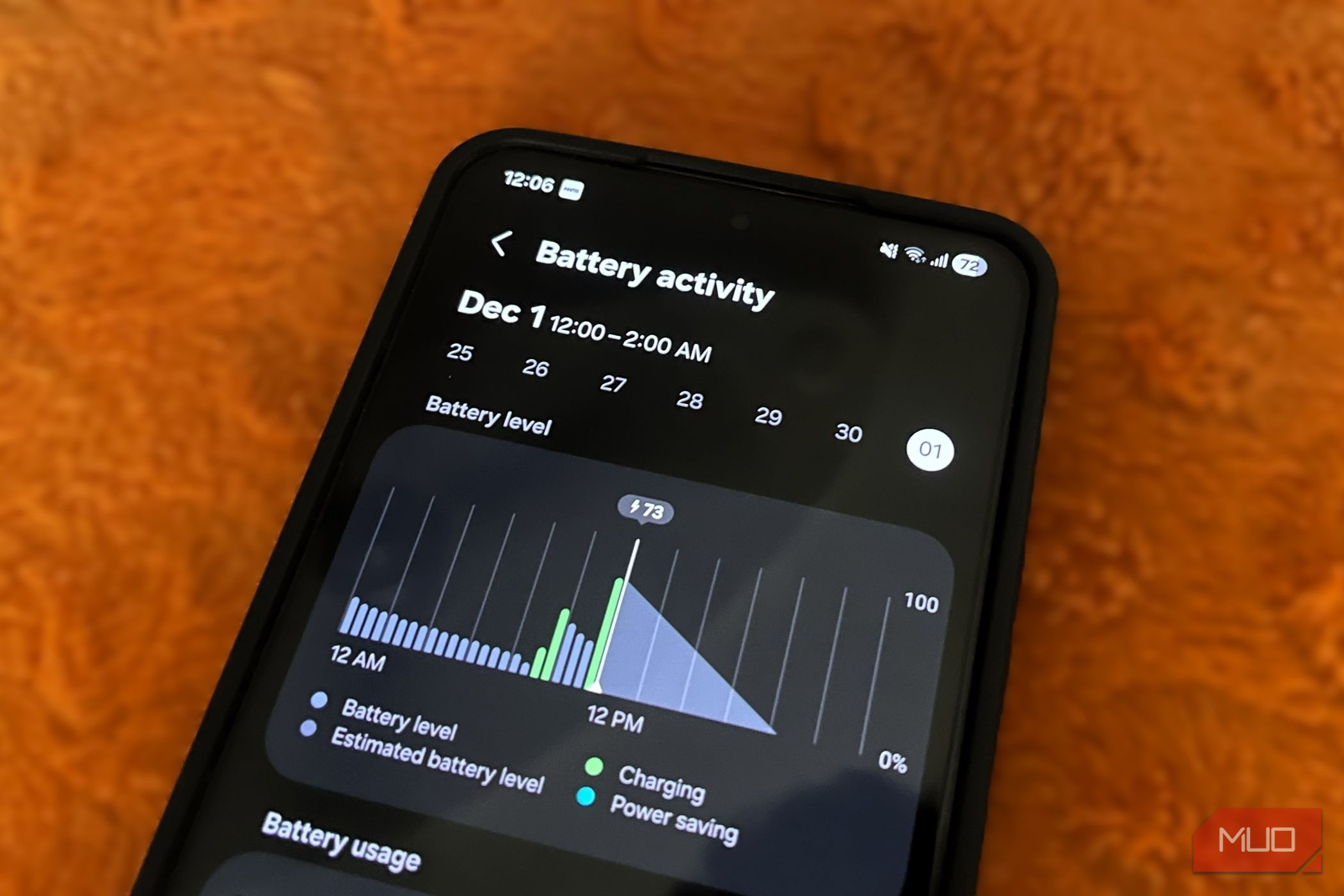
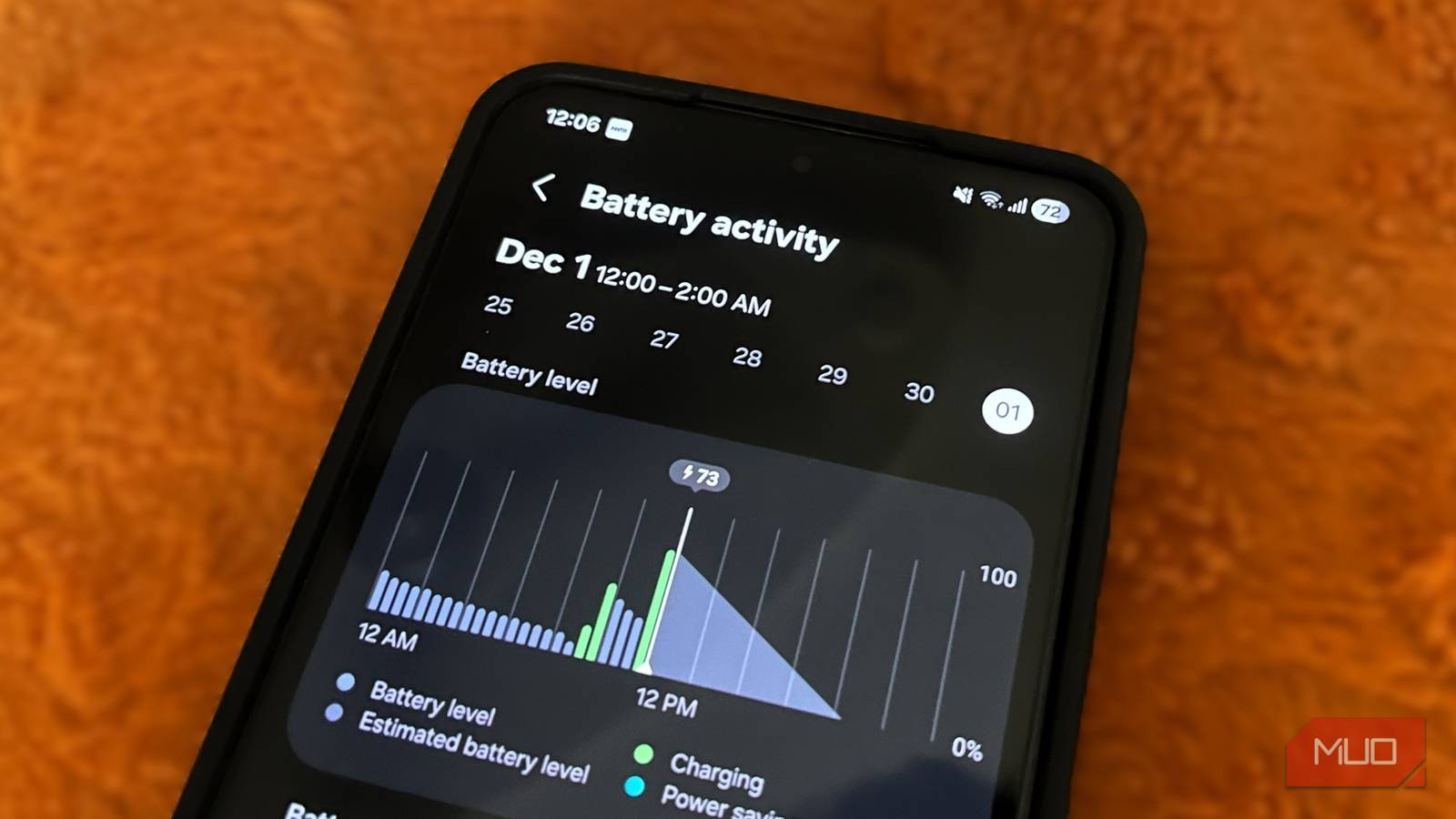
After switching to the Light profile, use your phone normally for a full day. Check the battery stats in Settings > Battery and device care > Battery to see the estimated time remaining and usage breakdown. Most users report an additional 2–4 hours of screen-on time.
Common Mistakes
Even with the right setting, a few pitfalls can undo your battery gains:
- Forgetting to reapply after a system update: Major One UI updates sometimes reset the Performance Profile back to Standard. Check it after every update.
- Expecting no performance impact: The Light profile reduces CPU/GPU speeds. You may notice slightly longer app opening times or slightly lower frame rates in games. Most daily tasks (messaging, web browsing, video streaming) remain perfectly smooth.
- Thinking Light is the same as Power Saving Mode: Light profile is a subtler tweak—it doesn't turn off background sync, lower brightness, or disable 5G. For extreme savings, you can also enable Power saving mode in Settings > Battery and device care > Battery > Power saving, but be aware it limits connectivity and reduces screen brightness.
- Not customizing per-app settings: Some apps (like camera or navigation) need full performance. You can keep them on Standard/High while using Light for everything else? Unfortunately, Samsung doesn't offer per-app performance profiles. You'll have to toggle manually if needed, or simply accept the trade-off.
Summary
Switching from Samsung's default Performance Profile to the Light setting is the single easiest way to extend your Galaxy phone's battery life. Combine it with a lower screen resolution, standard refresh rate, and dark mode to add hours of usage. Most users won't notice the performance dip, and the battery gains are immediate. Check the setting after every major software update and you'll never be caught with a dead phone again.