10 Essential Tips for Creating Staggered CSS Grid Layouts Like a Pro
Most CSS grid layouts align items in tidy rows, but sometimes you want a dynamic, cascading effect—like a waterfall. This article breaks down the key techniques for building a zigzag layout using CSS Grid and transforms. Each tip builds on the previous one, so follow along to master this elegant design pattern.
Tip 1: Understand the Zigzag Vision
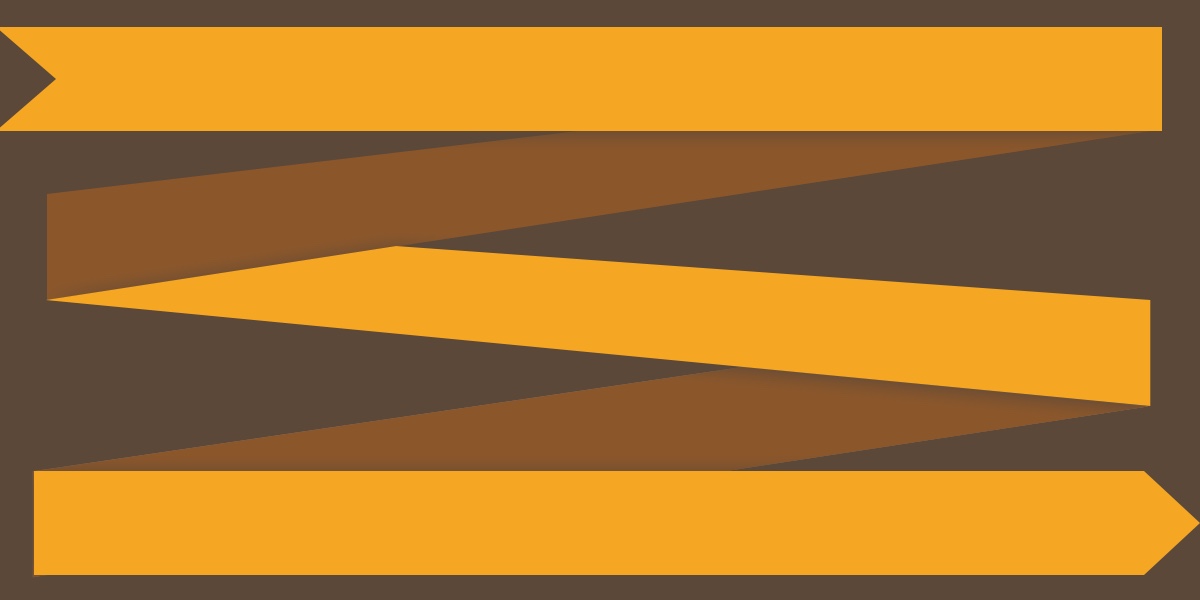
The zigzag layout, also known as a staggered grid, places items in a two-column arrangement where every second item is shifted downward by half its height. This creates a diagonal flow that feels organic and rhythmic. Unlike traditional grids that line up perfectly, this layout adds visual interest and breaks monotony. The effect is achieved by applying a simple CSS transform to even items. No JavaScript required—just a clever interplay of Grid and transforms.
Tip 2: Avoid the Flexbox Column Trap
Your first instinct might be to use flexbox with flex-direction: column and flex-wrap: wrap. However, this approach comes with two major drawbacks. First, you must set a fixed container height for wrapping to work—a brittle solution that breaks on different screen sizes. Second, the Tab order flows down the first column (items 1, 2, 3) then jumps to the second column (4, 5, 6), ruining the waterfall effect. The Grid method avoids both issues entirely.
Tip 3: Start with a Simple Two-Column Grid
Begin by setting up a wrapper with display: grid and grid-template-columns: 1fr 1fr. Apply a gap (e.g., 16px) and a max-width for control. Inside, place your items as plain
Tip 4: Embrace Box-Sizing Border-Box Globally
Before applying transforms, ensure all elements use box-sizing: border-box. Without it, an item with height: 100px and a 2px border becomes 104px tall. This discrepancy breaks the 50% translateY() because the transform calculates relative to the element’s actual height. By setting *, *::before, *::after { box-sizing: border-box; }, you lock the height to exactly 100px, making the shift predictable.
Tip 5: Apply Transform: translateY(50%) to Even Items
The magic happens with: .item:nth-child(even of .item) { transform: translateY(50%); } This moves every even item down by half its own height, creating the staggered fall. Because the transform uses the element’s own dimensions, it adapts to any height you set—no magic numbers needed. The result is a neat diagonal cascade that looks like a waterfall of boxes.
Tip 6: Choose the Right Selector for Precision
Many developers reach for :nth-of-type(even), but that selector matches by tag name, not class. If your grid contains mixed elements (e.g.,
Tip 7: Understand the Transform Percentage Quirk
A lesser-known CSS fact: percentage values in transforms (like translateY(50%)) are relative to the element’s own size, not its parent. This is why the technique works—the shift automatically matches the item’s height. If items have different heights (e.g., due to content), the stagger adjusts per element. However, for consistent visual rhythm, keep item heights uniform. This insight is key to mastering transform-based layouts.
Tip 8: Account for the Hardcoded Height Constraint
While the transform is dynamic, the underlying grid items need an explicit height for the stagger to work predictably. In the original example, we set height: 100px. Without a fixed height, the 50% shift might push items into unpredictable positions, especially if content varies. This is the one “hardcoded” value in the technique—but it’s a reasonable trade-off for the clean waterfall effect.
Tip 9: Ensure Responsive Behavior
On smaller screens, a two-column zigzag can become cramped or break the flow. Consider using media queries to switch to a single-column layout or adjust the shift. For example, at screen widths under 600px, set grid-template-columns: 1fr and remove the translateY(). Alternatively, increase the gap or use a different spacing method. Always test the layout on multiple devices to maintain the desired diagonal rhythm.
Tip 10: Test Browser Support and Accessibility
CSS Grid and transforms enjoy excellent modern browser support (Chrome, Firefox, Safari, Edge). However, older browsers like Internet Explorer may misinterpret :nth-child(even of .item)—a selector not supported in IE. For fallback, use a class-based approach (e.g., .even-item) or feature detection. Also, keep Tab order logical: because the grid flows naturally (left to right, then down), keyboard navigation stays intuitive. Verify with screen readers to ensure the staggered layout doesn’t confuse users.
Conclusion
With these ten tips, you can confidently build a zigzag CSS layout using a Grid + Transform trick. The technique avoids the pitfalls of flex-wrap, leverages transform percentages, and maintains accessibility. Experiment with different heights, gaps, and number of columns—then watch your designs flow like water. Happy coding!
Recommended
- 4 Web Development Revelations: HTML in Canvas, Hex Maps, E-Ink OS, and CSS Image Replacements
- Google's Gemini Nano Auto-Install Sparks Privacy and Web Standards Backlash
- Boosting JavaScript Startup Performance: A Guide to V8's Explicit Compile Hints
- 7 Steps to Recreate Apple’s Vision Pro Animation Using Only CSS
- Exploring CSS Color Palettes: Alternatives and Tools Beyond Tailwind
- Optimizing Pull Request Diff Performance: A Step-by-Step Guide
- How to Remove the Hidden 4GB AI Data Google Chrome Silently Stored on Your Computer
- How to Compute and Display Discounts Purely in CSS: A Practical Guide